Hey everyone, Nouman here 👋
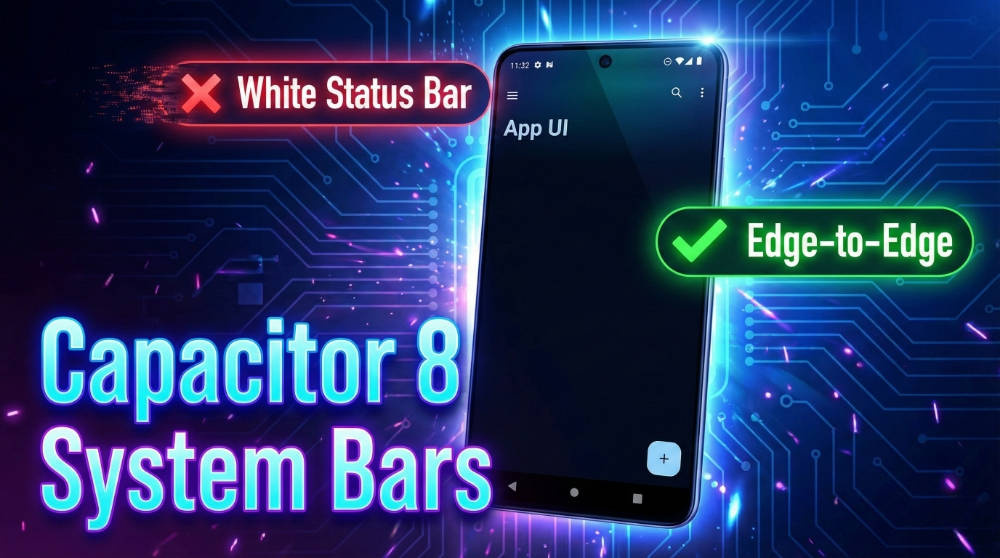
If you’ve been building hybrid apps for a while, you already know the pain of the white status bar.
You spend hours crafting a clean, immersive UI. Dark theme, smooth animations, perfect spacing. Then you run the app on Android…
Boom.
A bright white strip appears at the top, completely ruining the experience.
Suddenly, your app looks less like a native app and more like a rushed website.
With Android 15, Google is now enforcing edge-to-edge layouts by default, and with Capacitor 8, we finally have a proper solution: the new SystemBars API.
The catch?
Depending on your Android version coverage, there are two correct ways to handle this.
I’m implementing this right now in Pixlura, and in this guide, I’ll show you exactly how to fix the white status bar once and for all.
Scenario 1: The Modern Way
(Android 15+ — Automatic Colors, No Extra Plugins)
If you’re primarily targeting modern Android devices, Capacitor 8 makes this incredibly simple.
When you enable SystemBars with insetsHandling: 'css', the status bar becomes fully transparent, and your app content renders behind it.
That means:
- Your
ion-headerorion-toolbarcolor automatically becomes the status bar color - No manual color management
- No extra plugins
Configuration
import type { CapacitorConfig } from '@capacitor/cli';

const config: CapacitorConfig = {
  appId: 'io.pixlura.visuals',
  appName: 'Pixlura',
  webDir: 'www',
  plugins: {
    SystemBars: {
      insetsHandling: 'css', // Content draws behind system bars
      style: 'LIGHT',
      hidden: false,
    },
  },
};

export default config;
✅ Clean
✅ Native-looking
✅ Zero extra dependencies
However, things get tricky when you need guaranteed behavior on Android 12, 13, and 14.
Scenario 2: The Hybrid Way
(Best for Full Android Compatibility)
This is the approach I strongly recommend if your app has a diverse Android user base.
On older Android versions, SystemBars alone may not always force edge-to-edge rendering consistently. Some devices still show that solid color block at the top.
The Fix?
Use both plugins:
- SystemBars → handles layout and safe insets
- StatusBar → forces overlay + transparency on older Android
Step 1: Install the Status Bar Plugin
npm install @capacitor/status-bar
npx cap sync
Step 2: Configure Both Plugins
import type { CapacitorConfig } from '@capacitor/cli';

const config: CapacitorConfig = {
  appId: 'io.pixlura.visuals',
  appName: 'Pixlura',
  webDir: 'www',
  plugins: {
    // 1. Layout & Insets
    SystemBars: {
      insetsHandling: 'css',
      style: 'LIGHT',
      hidden: false,
    },

    // 2. Visual Overlay for Older Android
    StatusBar: {
      overlaysWebView: true, // Critical for Android < 15
      style: 'LIGHT',
      backgroundColor: '#00000000', // Fully transparent
    },
  },
};

export default config;
Why This Works
#00000000makes the status bar completely transparent- Your header color shows through naturally
- Edge-to-edge works consistently across devices
Result:
- Android 15 → handled natively by SystemBars
- Android 10–14 → StatusBar enforces overlay behavior
No white bar. No hacks. No visual glitches.
Dynamically Updating Status Bar Icons
Since the status bar is transparent, you only need to adjust icon contrast when switching themes.
import { SystemBars, SystemBarsStyle } from '@capacitor/system-bars';

async setStatusBarStyle() {
  // Light header → dark icons
  // Dark header → light icons
  await SystemBars.setStyle({ style: SystemBarsStyle.Light });
}
That’s it.
No color calculations. No platform checks.
Final Thoughts
After testing this across multiple devices for Pixlura, the Hybrid approach delivers the most reliable results.
If you want your app to:
- Look truly native
- Support older Android versions
- Avoid visual bugs caused by forced edge-to-edge
👉 Scenario 2 is the safest choice.
Give it a try, and let me know if it finally kills that annoying white status bar for you.
Happy coding 🚀
— Nouman Sehgal